Add an AI Voice Assistant to Your Website with Burki’s JavaScript SDK
Build an authenticated website voice assistant with Burki SDK 0.2.0: server-owned access, microphone controls, transcripts, funding checks and cleanup.
Table of Contents▼
A useful website voice assistant needs more than a talking button. The visitor needs to know when the microphone is active, when the agent is ready, what happened if audio failed, and whether the session ended. Your server also needs to decide which assistant that visitor may use and which usage it will fund.
Burki’s published JavaScript SDK provides the browser call runtime and authenticated session APIs for that integration. This guide builds the control flow for a logged-in customer portal. It is a developer integration: your application supplies authentication, authorization, durable request storage and its own interface. Installing the package does not make an organization’s assistants publicly accessible or provide a ready-made anonymous widget. The SDK README and examples describe this access boundary.
Download the free website voice integration kit. It includes a browser controller scaffold, the server route contract and a test worksheet. The resource is free to read and download. Production sessions have usage costs.
Define the first website conversation
Our fictional example, Cedar Service Portal, lets an authenticated customer ask approved service questions. The server maps that customer to assistant 42, permits a maximum of 120 seconds for this request and leaves recording off. The assistant can explain approved portal procedures and capture the customer’s question. This example does not connect a calendar, update a CRM or prove a customer outcome.
Put the voice panel beside the existing support options. Use a Prepare voice session button to obtain the allowance, then show the duration and funding information before a separate Start voice conversation action. Offer Mute, Resume audio when needed, and End conversation. Keep a text contact path visible for someone who cannot or does not want to use a microphone.
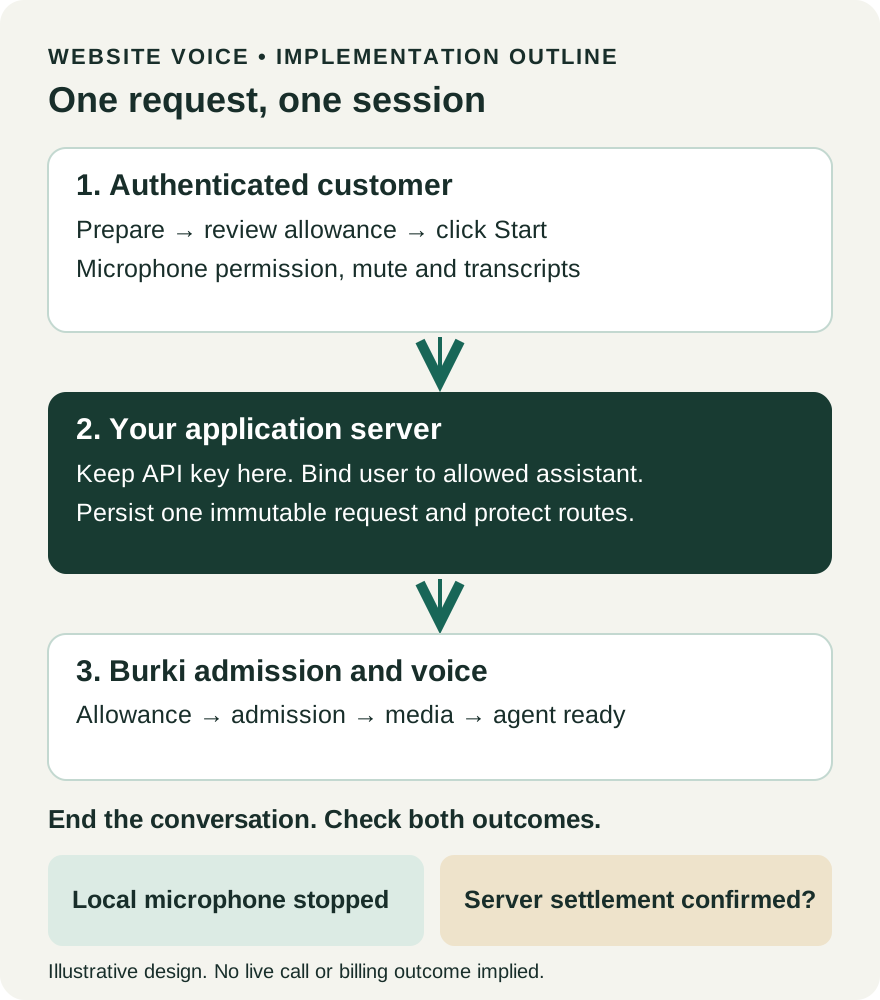
One conversation, one request. This diagram is an implementation outline, not a product screenshot or evidence of a live customer call.
Check the prerequisites and costs
Use a verified Burki account with an assistant owned by the intended workspace. Configure the assistant’s instructions, voice and permitted actions, then review its saved version and publication readiness. Keep the first integration limited to a configuration you have reviewed. A draft used in a test and the version intended for customers should not be confused.
Your web app needs a server runtime, an authenticated user session, authorization rules and persistent storage for request grants. Serve the site over HTTPS. Browser microphone access requires a secure context and user permission; an iframe may also need the parent page’s permission policy. A visitor can deny or ignore the prompt. MDN’s microphone documentation explains these cases.
Review Burki pricing before enabling customer sessions. The platform fee is $0.03 per active voice minute, with provider usage at cost and no additional management markup. Provider charges, your application hosting and optional services remain separate. Telephone number and carrier costs apply if you separately add a telephone workflow. A website microphone conversation does not establish telephone readiness.
Preflight exposes the current allowance and blockers for a particular request. It does not reserve funds or guarantee a later connection. Do not infer unlimited free usage from a demo or switch a sponsored test to a paid session without an explicit choice and a new checked request.
Install the version with browser support
The browser APIs described here are present in @burki.dev/sdk 0.2.0; the earlier 0.1.0 package does not include them. The public package version record and SDK source identify the version used for this walkthrough.
npm install @burki.dev/[email protected] [email protected]Import the API client only in server code:
import { BurkiClient } from '@burki.dev/sdk';

const burki = new BurkiClient({
  apiKey: process.env.BURKI_API_KEY!,
});
Use API keys in the Burki dashboard to open API access. When you need a server key, use Create key, name the application and review the permissions. Keep the value in the server’s secret storage. Do not put it in a browser environment variable, page source, local transcript log or frontend bundle. A key identifies its owning Burki account; it does not replace your app’s authorization of the customer.
Let the server own the request
The application must choose assistant 42 from its own access rules. It should not accept any assistant ID supplied by the browser and forward it unrestricted. The same applies to duration, consent, variables and test purpose.
On Prepare voice session, authenticate the app user, verify the request’s CSRF protection, resolve their allowed assistant and persist an immutable grant. Bind the grant to that user and a UUID. For this example the server-owned input is:
const input = {
  requestId: crypto.randomUUID(),
  assistantId: 42, // Resolved from your app's access policy.
  maxDurationSeconds: 120,
  recordingConsent: false,
};
// Persist input with the authenticated owner's ID before using it.
const allowance = await burki.browser.preflight(input);
The comment is an implementation requirement, not an optional placeholder. Use your application’s database and real authenticated identity. The kit spells out which values every route must recheck. The SDK’s server example shows the grant and ownership pattern without pretending to implement your application’s authentication system.
Return only the handle and safe allowance information to the browser. The API key stays on the server. Show allowance.blockers when eligible is false. Preserve integer-cent wallet amounts and the exact decimal-string provider_cost_max_usd if supplied; do not parse it carelessly or invent a price when it is null.
Map the example routes in the kit to your framework. /voice/session and /voice/session/:requestId/start, /stop and /status are routes you implement in your app, not automatically installed Burki endpoints. Every route must authenticate the current user and confirm grant ownership. Recheck their current assistant access, because membership can change after a grant was created. Use CSRF protection for mutations, return session responses with Cache-Control: no-store, preserve error status codes and exclude credentials from logs.
Connect the browser controller
The browser imports the separate media runtime:
import {
  createBrowserCall,
  SessionRequestError,
} from '@burki.dev/sdk/browser';
Create one controller for the persisted handle. Its transport calls your protected application routes. The downloadable kit contains the complete controller scaffold and typed UI hooks. Its central configuration looks like this:
const call = createBrowserCall({
  input: {
    request_id: handle.request_id,
    assistant_id: handle.assistant_id,
  },
  transport: {
    start: () => request('start'),
    stop: () => request('stop'),
    status: () => request('status'),
  },
  callbacks: {
    ready: () => ui.setState('ready'),
    transcript: (id, speaker, text, final) =>
      ui.upsertTranscript({ id, speaker, text, final: !!final }),
    ended: settled => ui.setState(
      settled ? 'ended' : 'ended_pending_review'
    ),
    error: message => ui.showError(message),
    playbackBlocked: blocked => ui.showResumeAudio(blocked),
  },
});
Here request, handle and ui are the kit’s controller inputs and helpers. They must be connected to your application, not copied as undefined globals. In a custom transport, throw SessionRequestError with the actual HTTP status when a request fails. That keeps an authentication failure distinguishable from an empty balance or rejected configuration.
Call call.start() from the visitor’s Start voice conversation click. The runtime requests the microphone before submitting admission. A successful start API response is only one stage: ready also requires connected media, a published microphone and an agent reporting a listening, thinking or speaking state. Show a preparing state until the ready callback fires. Keep an unavailable state honest if that never happens.
Render transcripts and controls accurately
Transcript updates include segment IDs and a final flag. Update the existing segment by ID rather than appending every partial update as another sentence. A caller who revises their question should not appear to have said the same phrase several times because of your UI.
Wire Mute to call.setMuted(true) and unmute to call.setMuted(false). If playbackBlocked is true, display a Resume audio control whose user click calls call.resumeAudio(). Browsers can restrict automatic audio playback, so a hidden retry loop is not a useful substitute for a visible interaction. MDN’s autoplay guide describes the browser behavior.
Do not request recording merely because a transcript is visible. The example keeps recording consent false. Recording has additional workspace, assistant, policy and storage prerequisites, and a consent flag alone does not satisfy them.
End media and reconcile settlement
End conversation calls await call.stop(). The runtime stops local media and asks the server to tear down the exact session. The returned boolean tells you whether settlement was confirmed. A false result needs later server status review; it should not be displayed as “everything settled,” and it does not mean the microphone should continue capturing.
Keep the persisted grant available for status and stop reconciliation after a tab closes or a connection fails. Page unload cannot guarantee the server’s final response. Do not automatically create a new UUID when a start response is uncertain: first resolve the original request. If settings intentionally change, create a new immutable grant and run preflight again.
For later call review, callSid and the numeric call-history callId are different identifiers. The SDK provides status and review APIs. Inspect recorded costs, funding state and tool outcomes separately; released media resources alone do not prove final billing settlement or a completed business action.
Use the acceptance worksheet before inviting customers
The kit has cases for denied microphone access, an expired app session, the wrong grant owner, a funding blocker, blocked playback, partial transcript updates and uncertain stop settlement. Record expected behavior, observed evidence and the correction needed for each case. Use mocked transports to check the UI and request binding before separately arranging any authorized live acceptance session.
This walkthrough was checked against the current SDK contract and Burki source. It did not place a paid call or demonstrate your particular site, provider credentials or external action. Start with the access and microphone cases. Once your app can reliably prepare, start, display and end one conversation, extend the voice assistant with the next verified business workflow.
Ready to try Burki?
Create an assistant and check your available browser practice allowance.
Create your assistantTrial eligibility and available practice are shown in your workspace.