Free Guide: Build a Voice AI Agent for Your HVAC Business
Build an HVAC voice assistant in Burki with a reusable prompt, business facts worksheet and test calls for repair enquiries, callbacks and booking limits.
Table of Contents▼
Your phone rings while the team is busy. Someone's air conditioner has stopped cooling, and they want to know whether you cover their area and can send someone today.
A useful HVAC voice AI agent can answer from your business facts, ask for the missing details and explain the next step. That is a good first project. It gives you something specific to build and test before asking an assistant to handle bookings or your business line.
This free guide includes a business worksheet, a prompt you can adapt and a set of practice scenarios. The guide and templates are free to read and copy. Live telephone service and funded usage have their own costs; see Burki's current pricing and your workspace's allowance before starting a session.
Save the free worksheet, starter prompt and practice tests. It is a plain text file you can copy into your own notes.
1. Pick one job for the first version
Start with new repair enquiries and callback requests. Let the assistant explain the services you provide and collect enough information for the office to review. Keep existing-job updates separate: without access to the job record, it cannot know why a technician is late.
For this walkthrough, Northside Heating & Air is a fictional business, with fictional towns and policies. It handles residential heating and air-conditioning repairs in Northfield and Lakeside, Monday through Friday, 8 am to 5 pm. Staff arrange visits after reviewing each request. It has no approved fixed repair prices and does not offer emergency dispatch.
The desired outcome is a clear request in the conversation history for staff to review. There is no automatic promise that somebody will call within a certain number of minutes. Choose a real queue owner and review schedule before using the assistant with customers.
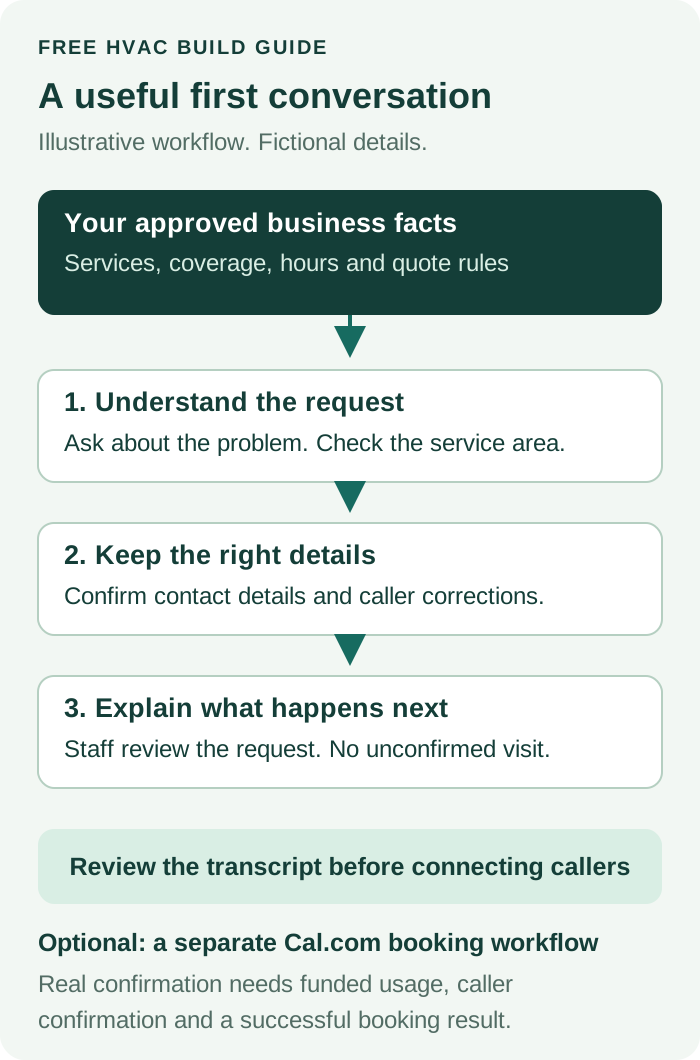
How the first version works. This is an illustrative workflow, not a product screenshot. A captured request still needs the office to arrange the visit. A calendar booking belongs to a separate connected workflow.
2. Fill in the business facts worksheet
Write the facts as if a new colleague were answering their first call. “We do HVAC” leaves too much unclear. Say which services, areas and next steps are actually supported.
| Detail | What to write before building |
|---|---|
| Services | Repairs, maintenance, installation enquiries, and anything you do not handle |
| Service area | Approved towns or ZIP codes, plus a rule for an unfamiliar location |
| Hours | Office hours, time zone and the actual after-hours process |
| Prices | Approved fees or quote rules; leave unavailable prices unknown |
| Required details | Name, callback number, service location, reported problem and preferred callback time |
| Visit arrangements | Who confirms a visit and what the assistant may promise |
| Urgent situations | A locally approved safety and escalation script supplied by your team |
Do not include private customer records or provider credentials in the prompt. For early practice, use fictional requests and contact details you control.
For an HVAC business, the safety section needs particular care. The assistant should not diagnose a fault or coach a caller through electrical or gas repairs. Have your team approve the instructions for gas smells, carbon monoxide alarms or other immediate danger. The CDC's carbon monoxide guidance explains why a furnace-related concern can require more than ordinary appointment intake. It is a source for your team's preparation, not a replacement for a locally approved emergency procedure.
3. Create your assistant in Burki
Create an account, open Assistants and start a receptionist draft. In Business setup, choose Receptionist as the assistant job, enter the business name, add the worksheet details to Business facts, and describe the request you want to collect in Desired outcome.
Use Apply business details to instructions, then read the generated instructions and greeting before saving. Applying the setup replaces those two fields, so keep a copy of any wording you want to preserve first. You can edit the resulting instructions yourself; a paid drafting operation is not required to write a useful first version.
Keep the draft focused on one workflow. An intake assistant does not need a list of promises about CRM updates, SMS follow-ups or dispatch tools you have not connected. Burki's editor provides separate areas for instructions, knowledge and actions, so you can add supported connections when you need them.
4. Adapt this starter prompt
The following prompt is for the fictional Northside example. Replace the facts and supply your team's approved safety wording before using it for a real business.
You are the receptionist for Northside Heating & Air.
Explain that you are an automated assistant. Speak clearly and ask
one useful question at a time.

APPROVED BUSINESS FACTS
We handle residential heating and air-conditioning repair enquiries
in Northfield and Lakeside. Office hours are Monday through Friday,
8 am to 5 pm in the business's configured time zone.
Staff review requests and arrange visits. We do not offer emergency
dispatch. No fixed repair prices are approved in these instructions.

YOUR JOB
Answer questions using these facts. For a new service enquiry,
collect the caller's name, callback number, town or ZIP code,
reported issue and preferred callback time. Ask for a full service
address only when the business's intake policy requires it.
Ask what the caller has noticed; do not diagnose the equipment.

CONVERSATION RULES
If the caller corrects a detail, replace it and confirm the change.
If coverage or pricing is unknown, say the team needs to check.
Do not promise a visit, arrival time, quote or callback deadline.
Do not say an appointment is booked. This assistant has no booking
action connected. A preferred time is only a request.
For an existing-job update, collect the reference and question
for staff. Do not invent job status or technician location.
For a reported safety concern, stop routine intake and follow the
business's approved emergency procedure. Do not offer repair advice.

CLOSING
Briefly repeat the issue, contact details and requested next step.
Say that the request needs staff review. Do not claim a message,
booking or other external action succeeded without a confirmed result.
Read the closing out loud. “Your request needs staff review” sets a different expectation from “Your technician is booked.” The service intake versus dispatch guide explains that distinction in more detail.
5. Practice the calls that could cause confusion
Save your changes, then start a browser test through the assistant's test controls. Review the session type and allowance first. Eligible free practice uses a limited allowance and simulated supported actions. Funded browser sessions can perform real configured actions, so a browser call is not automatically a simulation.
Use one short scenario at a time. These are suggested tests, not reports of a customer deployment:
| Say this as the caller | What to look for |
|---|---|
| “My AC stopped cooling. Do you cover Lakeside?” | Uses the supplied coverage and asks for the reported issue |
| “I'm in Westhaven. Can somebody come today?” | Admits unknown coverage and avoids confirming a visit |
| “Call me tomorrow afternoon. Actually, tomorrow morning.” | Keeps the corrected callback preference in the recap |
| “How much will the repair cost?” | Explains the quote rule instead of inventing a price |
| “I already have a visit scheduled. Where is the technician?” | Treats it as an existing-job question without inventing status |
Read the transcript after the call. Check the final details rather than judging only the voice. Was the corrected time preserved? Did the assistant ask for information it already had? Did it imply a booking?
If the result is wrong, change the relevant fact or instruction and try that scenario again. The browser practice guide explains allowance and session boundaries. You do not need to buy a phone number to find a confusing intake rule.
6. Add appointment booking only when it fits
If the business wants callers to choose an appointment, Burki supports a connected Cal.com event type and booking action. Choose an event that represents a real commitment you can fulfil. A short office callback is different from a technician visit that needs travel time, a particular skill or parts.
Cal.com describes how event types use availability and scheduling limits. Configure the calendar for the appointment you actually offer. That calendar alone does not establish technician dispatch readiness, and this guide does not claim a native connection to ServiceTitan or another field-service system.
Practice the booking conversation with simulated actions first. A real booking requires eligible funded usage, a working connection, caller confirmation and a successful calendar result. Review the returned action and the calendar record before treating the appointment as confirmed. If the action fails, keep the request for staff review and explain what still needs to happen.
7. Plan a small telephone rollout
Once the draft handles your practice cases, review publication readiness and your phone setup separately. Connect an eligible number and check the carrier route before forwarding customer calls. Existing-number forwarding, after-hours routing and transfers depend on your carrier and configuration.
Start with a scope the office can monitor. Agree who reads the call history, how unresolved requests are handled and when business facts are updated. A saved transcript is useful only if somebody reviews the requests that need attention.
I am Meeran, the founder of Burki. If you want to build this version, create your receptionist draft, add your approved business facts and test one repair enquiry. Then decide whether you need a connected calendar or simply a clearer callback workflow.
Ready to try Burki?
Create an assistant and check your available browser practice allowance.
Create your assistantTrial eligibility and available practice are shown in your workspace.