How to Build a Voice Agent for Your Plumbing Business
Set up a plumbing AI receptionist in Burki with a free intake prompt, corrected-address walkthrough, call-review worksheet and optional Jobber request path.
Table of Contents▼
A caller says there is water under the kitchen sink. They give an address, correct the apartment number, then ask whether someone can come this afternoon. Your office needs the final address, a reliable callback number and a clear description of what the caller noticed. It also needs to know that nobody has promised a visit.
This guide builds that first version in Burki: an AI receptionist for plumbers that answers approved business questions and captures service enquiries for staff review. The worked example concentrates on location corrections, reported symptoms, access uncertainty and the difference between a preferred time and an agreed visit.
Download the free plumbing starter kit. It contains an approved-facts worksheet, adaptable instructions, a call-review sheet and six acceptance cases. Reading and downloading the resource require no signup. Production voice usage, telephone numbers and external services have separate costs.
1. Define the request the office needs
Brook Lane Plumbing is a fictional business. It handles residential sink, toilet and drain enquiries in the fictional towns of Brook Lane and River Park. Office hours are Monday through Friday, 8 am to 5 pm in the business's configured time zone. Staff review requests and arrange visits. The example has no emergency dispatch service and no approved repair-price list.
The first assistant should collect a reported issue, service location, callback details and any access question. It should also distinguish a new enquiry from a question about existing work. An existing caller asking where their plumber is requires a staff response unless a verified action can retrieve that information.
Set an office owner for the review queue before connecting customer calls. “We captured it” does not tell anyone who will respond. In the example, an office coordinator reviews unresolved requests during office hours. There is no promised callback deadline.
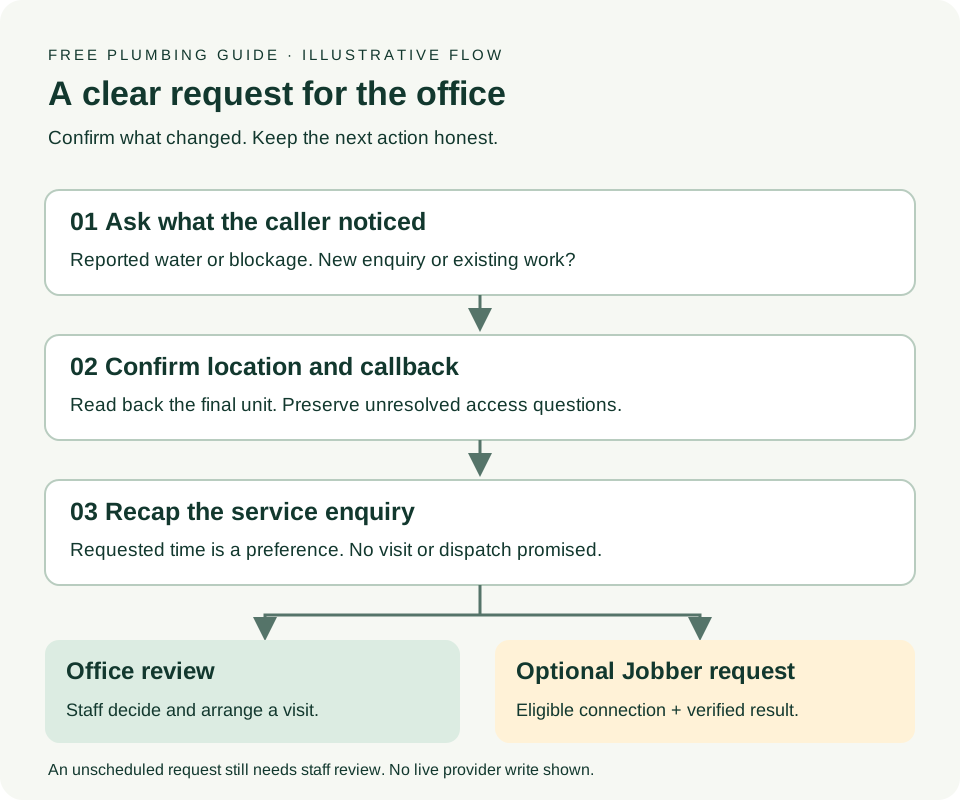
The intake path. This diagram illustrates the intended workflow. The optional external action needs its own connection and result verification; staff still arrange the visit.
2. Write the business facts before opening the editor
Fill out the starter kit with facts your office can approve. Include services, exclusions, service areas, hours and time zone, price policy, the intake details you need, and the exact urgent handoff wording. An unfamiliar town should produce a coverage question for staff rather than a guess.
Choose the minimum location detail needed for this task. A coverage enquiry may need only a town or postal code. A request the office must act on may need a street address and unit. Explain why you need the address and read it back, particularly when the caller corrects it.
Use “water beneath the kitchen sink” as the caller's observation. Do not turn it into “failed supply valve” without evidence. The EPA's leak guidance describes several different household leak sources. That is a useful reason to preserve what the caller reports and leave diagnosis to the plumbing team. The assistant's job here is intake, not remote repair advice.
Have qualified staff supply the locally appropriate procedure for an immediate safety concern. Do not generate instructions for working on electrical equipment, gas appliances or hazardous flooding. If that procedure is not ready, keep the workflow limited to routine enquiries and make the human escalation boundary explicit.
3. Create the assistant and apply your facts
In Burki, open Assistants, choose New assistant, then Set up manually and Receptionist. In the editor's Conversation tab, use Business setup or expand Business details for an existing draft. The setup panel is headed Make it your assistant.
Choose Receptionist under Assistant job. Enter Business name, paste your approved worksheet into Business facts, and use this for Desired outcome:
Capture a new plumbing service enquiry for office review. Confirm
what the caller noticed, the final service location and callback
details. Keep requested times and access questions separate from
confirmed arrangements. Staff decide whether to accept the work
and arrange a visit.
Choose Apply business details to instructions, then review the resulting instructions and greeting. Applying the panel replaces those fields, so preserve any existing wording you want before using it. Edit the instructions with the starter below and choose Create assistant or Save changes, depending on whether the draft already exists.
The editor also has Voice, Knowledge and Actions sections. Keep the first version's tools limited to the task you are ready to support. Writing “create a job” in the prompt does not install an action or connect a provider.
4. Adapt the plumbing starter instructions
Replace the fictional facts, the approved safety procedure and the review owner before using this with your business. Do not paste private customer records, access codes or provider credentials into the instructions.
You are the automated receptionist for Brook Lane Plumbing.
Introduce yourself as an automated assistant. Ask one useful
question at a time and keep the conversation clear.

APPROVED FACTS
We take residential sink, toilet and drain enquiries in Brook Lane
and River Park. Office hours are Monday to Friday, 8 am to 5 pm
in the configured business time zone. Staff review requests and
arrange visits. We do not offer emergency dispatch. No fixed
repair prices are approved in these instructions.

INTAKE
Ask whether this is a new enquiry or about existing work.
For a new enquiry, collect the caller's name, callback number,
service town, and what they have noticed. Ask for a full service
address and unit when the caller wants a service request.
Ask about access arrangements only if relevant. Record uncertainty;
do not treat the caller as authorized to enter another property.
Ask for a preferred callback time, not a guaranteed arrival time.

CORRECTIONS AND UNKNOWN DETAILS
Replace corrected details with the latest confirmed value.
Read back the final unit and callback number. Ask again if unclear.
Preserve the caller's description; do not diagnose the fault.
If coverage, price or visit availability is unknown, say staff need
to check. Do not promise a technician, a time slot or a fixed price.
For existing work, capture the reference and question for staff;
do not invent job status or technician location.

SAFETY AND CLOSING
For a reported immediate safety concern, stop routine intake and
follow the business's approved local procedure. Never improvise
repair instructions. Replace this rule with staff-approved wording
before customer use.
Recap the issue, final address, callback details and unresolved
access question. Say the request needs office review. This initial
version has no booking or dispatch action. Do not claim an external
record, message or appointment succeeded without its actual result.
The service intake versus dispatch guide explains why the next step matters. A requested afternoon visit is useful information; it is not a technician assignment.
5. Walk through a corrected request
Use fictional contact details you control when testing. The following conversation is an illustration, not a report from a real caller or a claim that a provider action succeeded.
Caller: “There is water under the sink at 18 Example Street, unit 2. Can someone come this afternoon?”
Assistant: “I can collect the details for the office to review. What have you noticed?”
Caller: “A puddle in the cabinet. Actually, the unit is 2B. I'm the tenant, and I need to check access with the landlord.”
Assistant: “Thanks, I have unit 2B. I'll keep the access question with the request. What number should the office use to reach you?”
After the caller supplies and confirms a number, the closing should preserve unit 2B, water reported in the cabinet, access still to be checked, and afternoon requested. It should say the office needs to review the enquiry. A closing that says “a plumber is on the way” fails this workflow.
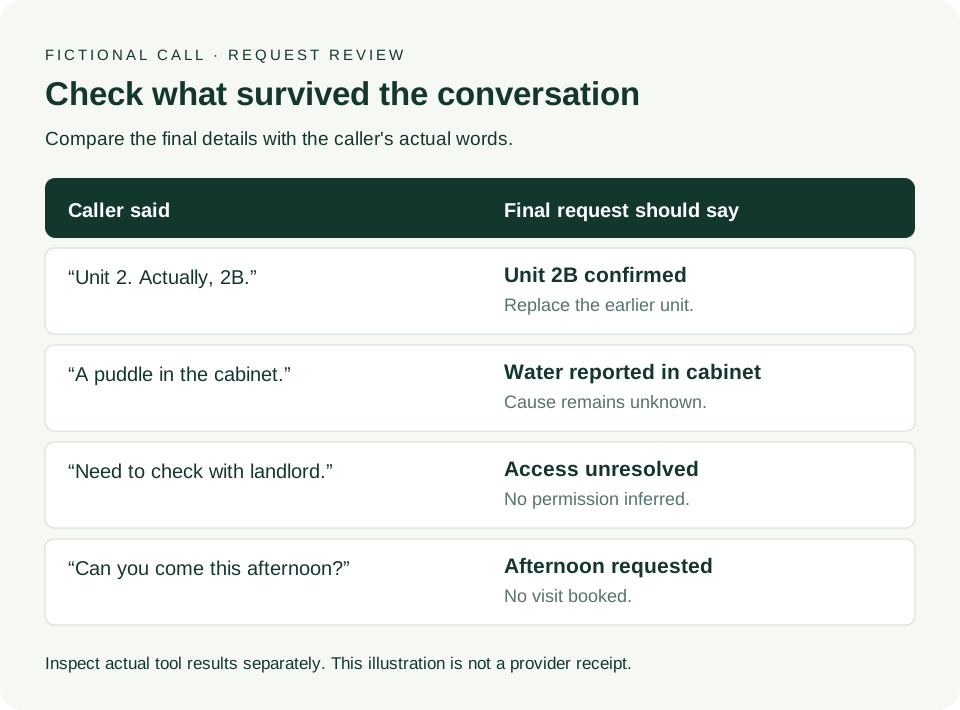
What should survive the call. Check the final information against the conversation. An illustrative record is not evidence that a visit or CRM update occurred.
6. Configure useful call notes and inspect the result
For eligible customer telephone calls, Burki can save a summary, structured information and quality checks. In the Publish tab, expand After-call settings, then Call notes to capture. In What information should we capture?, explain that you want the latest confirmed location and contact details, the reported issue, the preferred callback window and unresolved access questions.
Use Add detail to create fields such as service_address, unit, reported_issue, callback_number, callback_preference and access_question. Choose a suitable Format and add a description of what each field means. A “Must capture” setting does not make absent information true. If the caller never supplies a unit, keep it unknown rather than inferring one.
In What makes this conversation successful?, use a criterion such as: “The final corrected address and callback number were confirmed; the reported issue and unresolved access question were preserved; no visit was promised without a confirmed booking.” Save the changes before relying on them for later calls.
Open the completed call in Calls and review the transcript alongside Summary, Captured information and the saved quality checks. If analysis is pending or failed, handle that state rather than treating empty notes as a successful request. Saved notes do not prove that an email, SMS or webhook reached staff. A separate delivery destination needs separate verification.
Public demos do not export this customer analysis. Browser practice is useful for conversation review, but it does not establish the telephone call-note workflow. The saved call-summary guide explains the result and delivery distinction in more detail.
7. Add Jobber only when the connection is eligible
The initial version can leave an enquiry for office review without a CRM write. If your workspace has eligible Jobber access, use Burki's Jobber setup guide to check the current connection requirements. Burki's Jobber app remains a private testing and app-review path; this walkthrough does not establish a public marketplace listing or acceptance for your account.
A workspace administrator connects Jobber through Integrations. In the assistant's Actions section, the Jobber permissions include Find clients, Create clients and Create service requests. Enable only the actions this workflow needs. Service requests require a matching client and service address. If the record is ambiguous or the corrected property cannot be matched, leave a clear request for staff rather than writing to the wrong record.
Jobber's official developer documentation describes account authorization and separate client, property and request objects. A successful account connection and a successful request creation are different checks. Burki's connection test does not create a client or service request.
Free practice, demo and builder sessions simulate supported external actions. Ordinary eligible funded browser calls can execute assigned actions after required confirmation. For an eventual live rollout, inspect the actual Jobber result and record before saying a request was saved there. A saved service request is unscheduled; it does not dispatch a plumber or confirm a visit. This guide did not perform a live provider write.
8. Test the failures you want to catch
Choose Test this version after saving. Check the displayed session type, readiness and allowance before starting. Use one case at a time and record what happened in the downloadable worksheet.
| Caller case | Expected behavior | Evidence to inspect |
|---|---|---|
| Corrects unit 2 to 2B | Final recap uses 2B | Transcript and final location |
| Gives an unfamiliar town | Asks staff to check coverage | No invented service-area promise |
| Wants “today at 3” | Treats it as a preference | No claimed visit or dispatch |
| Tenant is unsure about access | Preserves the uncertainty | No inferred permission or access code |
| Asks where an existing plumber is | Captures reference and question | No invented location or job status |
| Optional Jobber action fails | Explains the unresolved request | Actual failed result, no success claim |
If the correction disappears, improve the correction rule and repeat that case. If the assistant invents a price, supply the real price policy and an unknown-price response. If notes lose the access question, review the field description and compare the next eligible call's saved result with its transcript.
9. Check costs and prepare the phone rollout
The starter kit is free. That does not make a production voice agent free to operate. Review current Burki pricing: the platform fee is $0.03 per active voice minute, with provider usage at cost and no additional management markup. Provider choices, carrier usage, numbers, optional services and taxes can add separate charges. Check any displayed practice allowance and exclusions in your own workspace rather than assuming an unlimited trial.
When the cases pass, review Publish and publication readiness. Save and publish the appropriate version before attaching an eligible telephone route; saved edits can remain drafts. Number ownership, routing and carrier readiness need their own checks. Start with calls your office can monitor, and agree how it will handle pending analysis, unanswered follow-up and uncertain requests.
I am Meeran, the founder of Burki. To build this version, create a receptionist draft, use the free starter kit and test the corrected-unit case first. When the office can trust that request, decide whether a verified Jobber connection is the next useful step.
Ready to try Burki?
Create an assistant and check your available browser practice allowance.
Create your assistantTrial eligibility and available practice are shown in your workspace.