Set Up Burki Background Sounds: Standard Pipeline
Configure background audio for a Burki Standard pipeline assistant, choose a permitted clip and plan a clear listening comparison with a free worksheet.
Table of Contents▼
Voice agent background audio adds an optional sound bed alongside an assistant's speech. In Burki, the Background sounds controls let you select a clip, set its volume and choose whether it repeats. The useful first version is a quiet, permitted recording that leaves the important words easy to understand.
This guide covers Standard pipeline assistants. It explains configuration and a listening-review plan, with an original fictional example. It does not establish that a saved clip has played successfully on a particular telephone route. No upload, preview, voice call or paid generation was performed for this article.
Download the free background-audio worksheet. It includes a source record, setup checklist, three original listening fixtures and empty observation fields. The guide and resource are free; provider, platform, telephone and storage costs remain separate.
Decide what the clip should contribute
Start with a plain purpose, such as “a quiet room-tone bed under our studio reception assistant.” That gives the reviewer something to assess. “Make the call sound better” is too vague to tell you whether the change helped.
Keep three parts of the sound separate:
| Part | What to review |
|---|---|
| Assistant speech | Voice, wording, pronunciation and spoken corrections |
| Added background clip | Whether the selected ambience is appropriate and leaves speech intelligible |
| Caller input | Whether the caller can be understood in their own environment |
Adding an output clip does not remove noise from the caller's microphone. It is also a different task from configuring audio during a telephone transfer. Keep the first experiment limited to ordinary assistant conversation.
Burki's current implementation uses an ambient audio track. LiveKit documents background playback as a separate track alongside the agent session. That describes the media mechanism, not a guarantee about a listener's device or a carrier connection. LiveKit background-audio documentation.
Prepare the source before opening the editor
Use an audio file you have permission to use for the intended purpose. A recording owned by the business, with no private conversations or identifiable customer material, is a straightforward starting point. A file being publicly downloadable does not by itself establish permission to reuse it.
For the upload route, prepare an MP3 or WAV within the editor's 10 MB limit. Keep an unchanged local copy and record a filename, duration, format and file hash if available. Those details help someone distinguish a revised clip from a volume change later.
For a URL source, use a publicly accessible audio file under the business's control. A link to a webpage, an internal network address or a resource that needs a browser login is unsuitable. Burki checks external sources before retrieving them; a typed URL is not evidence that the file was accepted or decoded.
Choose one source for the first version. The editor treats the uploaded file and URL as alternatives, so selecting one replaces the other source selection. Do not build the experiment around a temporary signed link that may expire before the review.
Open the controls for a Standard pipeline assistant
Use a nonproduction assistant you own. If you are working with a connected assistant, first review its publication state. Some existing assistants use legacy live settings, where saving changes affects connected calls. The presence of a Save button does not establish that the change is isolated from production.
- Open the assistant editor and select Voice.
- Under Model and provider choices, inspect Conversation engine. This guide requires Standard pipeline · advanced provider choices. Do not switch a working assistant's engine simply to follow the example.
- Open Speech settings, then Advanced voice stack.
- Expand Background sounds. The initial control is Enable background sounds.
The October 24 interface review inspected these disclosures with the switch off. The remaining fields below are conditional controls verified in the current editor source. They appear when the feature is enabled; this article did not toggle the live assistant's setting to expose them.
Current background-audio configuration is not supported in GPT Live. Even if a background control is reachable under an announcement-voice section, that does not establish compatibility. Resolve the engine choice and readiness first; do not try to add ambience to a GPT Live configuration by copying settings.
Select one clip and make the settings explicit
For your own approved configuration, enable Background sounds, then choose the source:
- Upload: choose the MP3 or WAV file. Save the assistant first if it does not yet have an ID; the upload control requires an existing assistant. A successful upload shows the selected filename.
- URL: enter the eligible public audio URL instead of an uploaded file.
An upload receipt establishes that a file was stored. It does not establish successful playback. Audio-duration validation can be unavailable, and a later load or decode can fail. Preserve the source evidence and check the actual result on the intended route when a listening test is authorized.
Next, choose an explicit positive Volume value and record Loop continuously as on or off. The volume control is a relative setting, not a calibrated loudness measurement. Start conservatively and listen to the words that matter.
Use Enable background sounds off when you want the feature disabled. Do not rely on setting the volume slider to zero as a mute procedure: the current editor's default-volume fallback can replace a zero value in the displayed control. For an accepted configuration, record the switch, source and positive volume together.
When Loop continuously is on, plan to review the point where the clip repeats. A jump or an unexpected spoken sound at the join can be more distracting than a steady bed. When looping is off, review the end of the clip as well as its beginning.
Work through a quiet studio example
Consider a fictional business, Alder Studio, preparing a reception assistant. The studio owns a 20-second room-tone recording with no speech. Its first candidate uses that WAV file, 15% volume and Loop continuously on. These are proposed example settings, not a recommendation that 15% produces the same sound level everywhere.
The business task is to answer workshop enquiries accurately. The audio review therefore includes a request-versus-confirmation sentence and a correction, rather than judging only whether the opening greeting sounds pleasant.
Keep this record for the candidate:
Purpose: quiet room tone during studio reception
Source: studio-owned room-tone recording, version 01
Conversation engine: Standard pipeline
Background sounds: enabled
Volume: 15%, a proposed starting setting
Loop continuously: on
Review status: NOT TESTED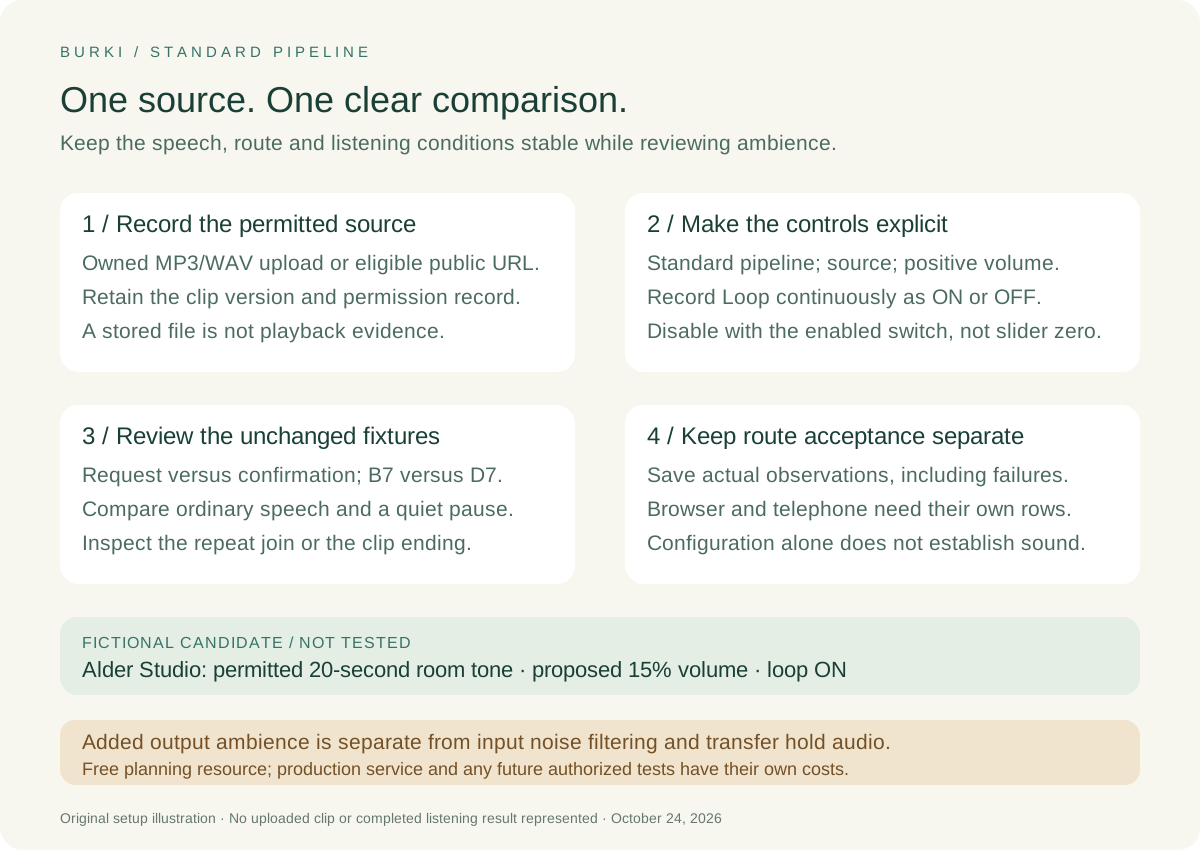
The diagram describes the proposed review sequence. None of its stages represents an upload or call completed for this guide.
Compare the same speech with and without the clip
Prepare the comparison before changing the audio. Keep the assistant's instructions, voice and model choices, intended route and listening device stable. Record any difference that cannot be held constant, rather than attributing every change to the background clip.
The worksheet provides three original fixtures:
- A business status: a workshop enquiry is a request, and a team member confirms availability.
- A correction: the reference is B7, not D7.
- A longer reply and pause: explain what the team needs, ask one question, then leave room for the caller to answer.
For each fixture, note whether the important words remain clear, whether the clip contains an inappropriate sound, and whether its loop or ending distracts from the conversation. Keep ordinary speech and a quiet pause in the review. The mix can behave differently while the assistant is speaking and while it is idle.
Make the acceptance rule concrete. For Alder Studio, a listener confusing “request” with “confirmed,” or B7 with D7, fails the candidate even if the ambience is otherwise pleasant. The correction is to lower the positive volume, revise the permitted clip or disable the feature, then reassess the same material. Do not rewrite the script and change the voice at the same time and call that a clean audio comparison.
This is a plan for an authorized future test. A browser result does not establish the same result over a telephone connection, and a saved recording is useful evidence only after its actual contents have been checked. Keep route-specific observations in separate rows.
Resolve an unavailable clip before calling it a result
If the source is missing, private, too large or undecodable, optional ambient loading can be unavailable. Investigate the selected source and its access rather than raising the volume. Check whether the assistant retained the intended file or URL and whether the source changed between preparation and review.
If speech is unclear, first compare against the unchanged baseline. A recognition problem on caller input and an overly loud output bed need different corrections. Keep the observed symptom specific: “B7 was hard to distinguish on this route” is useful; “background audio is broken” gives the next reviewer little to work with.
Before using the candidate for real callers, resolve the assistant's current readiness and publication state, the approved costs, and the listening evidence for that route. Review Burki pricing for the wider operating arrangement. For an AI receptionist, the purpose of the audio choice is to support an understandable business conversation. Keep the setup that passes that task's review, including the option to leave background sounds off.
Ready to try Burki?
Create an assistant and check your available browser practice allowance.
Create your assistantTrial eligibility and available practice are shown in your workspace.