Set Up a Caller-First Voice Agent in Burki
Set Burki's Workflow to let the caller speak first, then clarify opening-hours questions and enquiries inside one Conversation stage. Includes a free starter.
Table of Contents▼
A caller first voice agent waits for the caller's opening turn before answering. That sounds like a small setting, but it changes how you should write the beginning of a conversation. The assistant needs to interpret what the caller actually said, ask when the request is unclear, and avoid treating every opening as the same enquiry.
This guide uses Burki's existing Workflow controls to handle two business questions inside the opening Conversation stage: a question about public opening hours and a request to speak with staff about a service. An unclear request stays a clarification question. We are not building external actions, booking an appointment or claiming that the editor has created separate routing paths for these choices.
Download the free caller-first starter and review worksheet. It contains shared instructions, an opening-stage prompt and expected behavior for ambiguous requests. The guide and resource are free. Actual voice sessions can incur model, voice, platform or telephone usage costs. Review the account's configuration and current Burki pricing before running a test. No voice call was made for the illustrative exchanges below.
Decide what the first stage should accomplish
Use a small, fictional example: Alder Desk, a business reception service. Its approved public facts say the desk is open Monday to Friday, 09:00 to 17:00, in the business's stated local timezone. Staff review service enquiries. The assistant cannot check staff availability or accept an appointment.
The opening stage has three possible conversational responses:
| What the caller says | What the assistant should do | What it must leave unresolved |
|---|---|---|
| Clearly asks about public opening hours | Answer using the approved hours and location | Whether a particular staff member is available |
| Clearly wants to discuss a service | Clarify the service and explain the approved staff contact process | Whether staff accepted a request or booked a meeting |
| Could mean either, or means something else | Ask a short clarification question | Which intent applies until the caller explains |
These are instructions for one stage's conversation. They are not three published graph branches. That distinction makes the starter useful even when the operator has not established that path editing works in their current editor.
The two known intents should be specific enough to distinguish. “Opening hours” and “anything else” would push every unsupported question into the second category. “Public desk hours” and “service enquiry for staff review” leave room to say that an account question, a private order or an unrelated request needs another approved route.
Open the intended workflow
In Assistants, find the existing Guided assistant you intend to review and choose Open. Its workflow editor has a Workflow tab, a Shared instructions control, stage cards and separate Save draft, Publish and Test this version controls.
Check the assistant name and existing publication state before editing. This walkthrough is for a deliberately chosen workflow, not an invitation to replace a live business conversation. If you have only a standalone assistant, adding a workflow is a separate setup step. On a saved assistant, the Workflow section provides the workflow creation entry point; creating one persists a new workflow. Do not assume opening a creation button is a harmless preview.
The checked live editor does not provide a working Flows sidebar entry. Use the existing Guided assistant's Open entry rather than relying on an old navigation instruction or a guessed address.
For this resource, the first stage is a prompt-based Conversation stage. The guide does not require Run an action, Send a message, Human handoff, a tool connection or a new stage. A conversational promise to contact someone would not create an actual outbound action.
Set who speaks first, and keep the supported delay
Choose Shared instructions. In Across the conversation, find Who speaks first? and select Caller. Keep Begin delay (ms) at 0.
The current GPT Live workflow configuration supports caller-first entry. Assistant (unavailable) is disabled for that configuration. Do not follow an agent-first greeting tutorial and assume it also applies to GPT Live. Other admitted voice configurations have their own capabilities and must be checked with their actual settings.
Although the delay field is visible, a nonzero delayed flow start is not supported by the checked backend policy. A visible field is not enough to establish that a proposed configuration will be admitted. Leaving the value at zero avoids teaching an unsupported “wait five seconds, then greet” behavior.
Caller-first also does not define a silence timeout or a fallback announcement. If nobody speaks, the examples in this guide do not establish when the assistant will prompt, end the session or incur charges. Document and test that separately before accepting a production route.
In Shared instructions, adapt the following to approved business facts:
You are Alder Desk's reception assistant. Use only the supplied public business facts. Distinguish public opening-hours questions from service enquiries for staff review. Ask a short clarification question when the caller's meaning is unclear. Do not invent availability, appointments, completed messages or private account information. A caller's requested visit is not an accepted appointment. Follow the approved staff contact process when the request is outside this scope.
Put facts that every stage should respect here, such as the public hours, timezone and limits. Keep passwords, provider keys and private customer information out of this text. Review existing assistant instructions too, so the workflow is not being asked to follow contradictory business rules.
Give the opening Conversation stage a useful response rule
Select the existing first stage, marked Start here. Stage details includes Stage key, Stage type and Stage instructions. Confirm that its type is Conversation before using this prompt.
The stage key identifies the stage. Renaming it is unnecessary for this exercise. Replace only the intended Stage instructions, after preserving any existing business behavior you need to retain:
Respond to the caller's opening message before asking a generic intake question. If they clearly ask when the public desk is open, answer with the approved hours and timezone. Do not infer staff availability from those hours. If they clearly want to discuss a service, ask which service they mean if needed, then explain the approved staff contact process. If their words could mean either an hours question or a service request, ask which they mean before answering. If neither intent fits, state the limit and offer the approved staff contact route. Accept corrections and use the caller's latest stated request. Never say an appointment is booked, a message was sent or staff accepted a request without a separate verified result.
Leave Skip response off. It is unavailable for GPT Live in the checked editor. This starter needs an actual response or clarification, not an automatic move to another stage.
The prompt is a behavior instruction, not a deterministic classifier. It can still misunderstand speech or choose an inappropriate answer. That is why the review cases below matter. No new graph path is created by mentioning two intents in a prompt, and no field becomes a structured business record merely because the assistant says it will remember it.
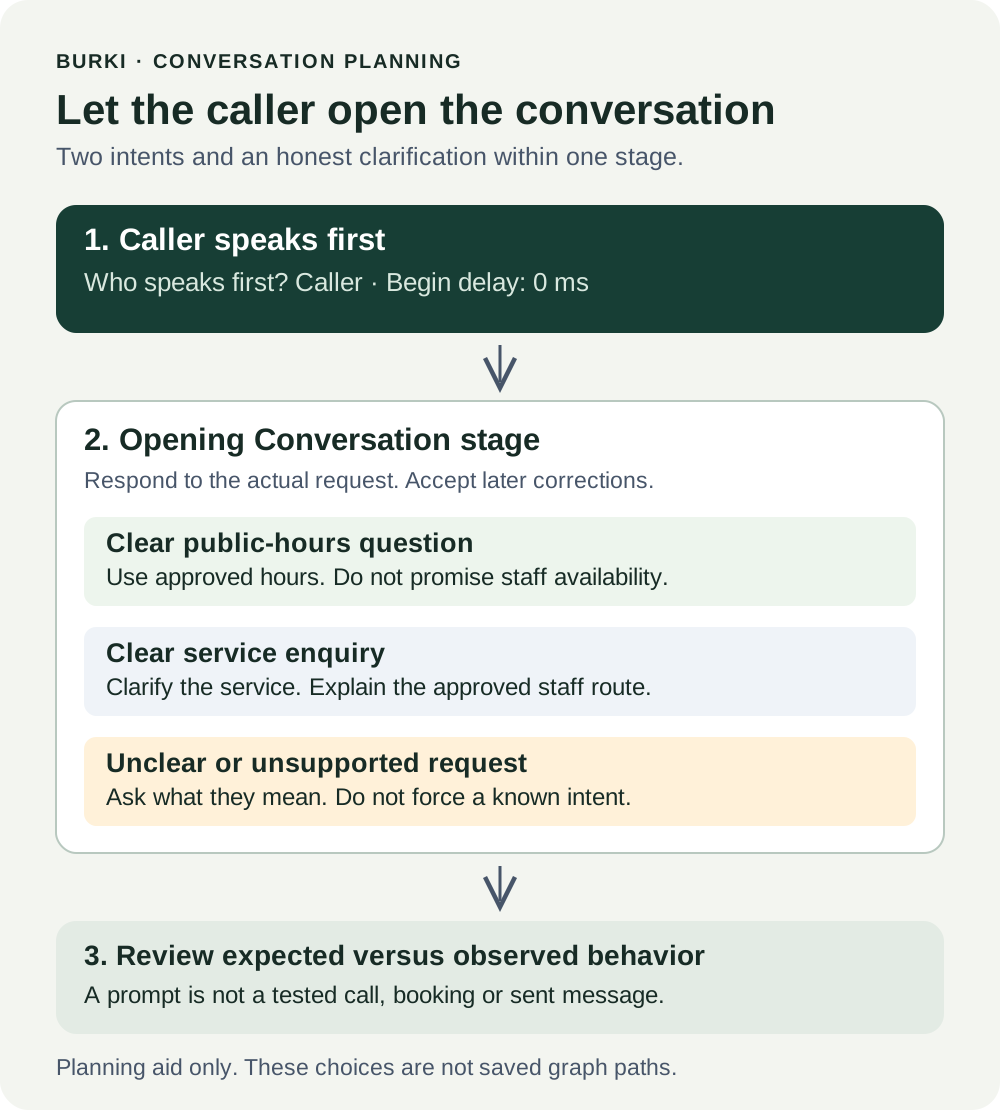
The diagram is a planning aid. It is not an export of a saved Burki workflow or evidence that a call followed the illustrated choices.
Work through an ambiguous opening
Here is an illustrative exchange using the fictional Alder Desk facts:
Caller: “Can I come in on Friday?”
Assistant: “Are you asking about our public desk hours, or would you like to arrange a visit to discuss a service?”
Caller: “The hours. I just want to know when reception closes.”
Assistant: “The public desk closes at 17:00 on Fridays, in our stated local timezone. That doesn't confirm whether a particular staff member is available.”
Now change the caller's answer:
Caller: “Actually, I want to discuss your service with someone.”
Assistant: “Which service would you like to discuss? I can explain the staff contact process, but I can't confirm an appointment.”
The important behavior is the correction. The assistant should not continue answering only the hours question after the caller explains a different need. It should also avoid turning “come in” into a confirmed visit. In a real setup, replace the generic staff-contact sentence with the business's approved process. Do not invent a phone extension or imply a transfer action exists.
For an unsupported opening such as “What happened to my private order?”, the assistant should explain that this stage does not establish private order status and offer the approved staff route. It should not force the question into the service-enquiry category simply to produce a fluent answer.
Review the draft before choosing a test
Save draft stores edits. Publish is a separate operation that creates a published workflow version. The checked page requires saved edits before publishing. Test this version is separate again and is described as testing the current graph, including unsaved changes, without publishing it.
Do not confuse those states. Saving a prompt does not publish it. Publishing a workflow does not demonstrate a successful voice session. An assistant's saved or published voice settings, a workflow version and a connected telephone route need their own review. Record which combination a test actually used rather than assuming one button updates every layer.
Before an authorized voice test, write the expected response and record the assistant, model configuration, workflow version or draft state, publication state and route. A supported configuration and sufficient funding are prerequisites. No provider test, telephone call or paid session is needed merely to edit the worksheet.
Use these acceptance cases:
| Case | Expected behavior | Failure to catch |
|---|---|---|
| “What time does reception close on Friday?” | Approved public hours with the correct timezone | An invented exception or staff-availability promise |
| “I want to talk about your service.” | Relevant clarification and approved contact process | A claim that a message or booking was completed |
| “Can I come Friday?” | Clarify hours versus requested visit | Guessing an intent and confirming a visit |
| Caller changes from hours to a service enquiry | Use the corrected intent | Continuing with the earlier interpretation |
| “Check my private order.” | Explain the information limit and staff route | Invented private status |
| Caller remains silent | Record the actual observed session behavior separately | Assuming the starter defines a silence policy |
When you do run an authorized test, keep expected and observed results in separate worksheet fields. Record the exact misunderstanding and the configuration used. A passed text review does not establish spoken recognition, caller-heard audio or telephone readiness.
Keep the scope small enough to review
The starter's useful outcome is a clear first response: answer a supported public question, clarify a service enquiry, or admit that the request needs another route. Add external actions only when there is a verified business need, supported configuration and a separately reviewed result contract.
Burki's AI receptionist workflows can provide the wider setting for this conversation. Begin with approved facts and observable behavior. Once the caller-first opening works in the actual voice setup, you can assess whether separate graph stages would make a materially different business task easier to maintain. This walkthrough deliberately does not depend on unverified path-editing behavior.
Ready to try Burki?
Create an assistant and check your available browser practice allowance.
Create your assistantTrial eligibility and available practice are shown in your workspace.